


Deleting WordPress Plugins: Hidden Data + Real Cleanup Recipe
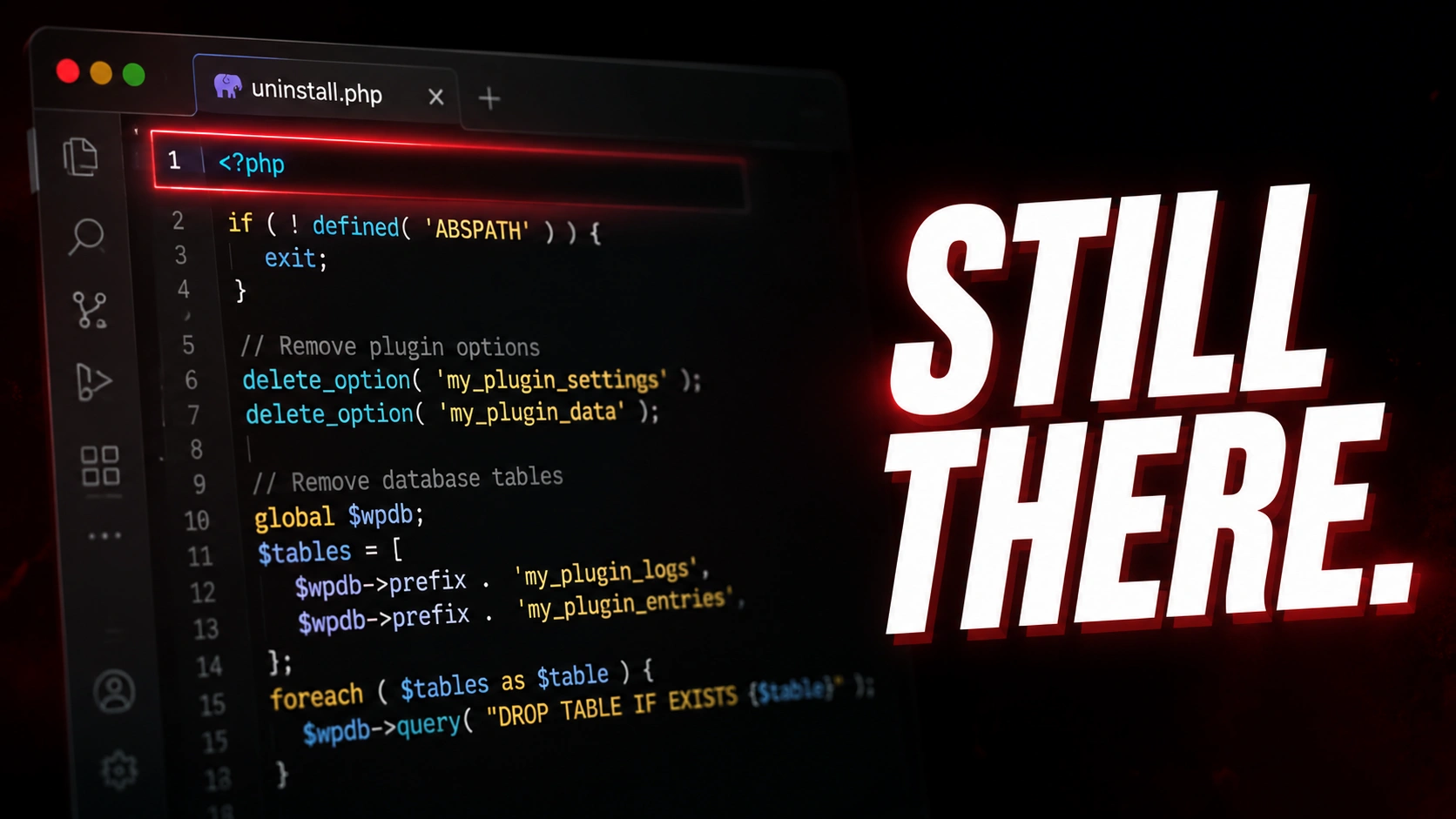
Table of Contents
Deleting WordPress plugins from the admin UI never actually clears their data. The success message is a lie, dressed up in green. Rows for the plugin keep sitting in the options table, in the post meta table, sometimes in custom tables nobody documented.
This is not an exotic edge case. It is the baseline behavior of the WordPress ecosystem. Every audit recipe in this guide treats it that way and gives the developer a calm, repeatable cleanup routine instead of a panic response.
In this post
- The leftover fingerprint
- What uninstall.php is supposed to do
- Why most plugins skip it
- The audit recipe — WP-CLI and raw SQL
- The cleanup recipe — and the safety pause
- When NOT to clean
- Quick reference for deleting WordPress plugins safely
The leftover fingerprint
Across hosting-provider engineering audits run between 2023 and 2024, only about 20 percent of installed plugins ship a working uninstall routine. The other 80 percent leave their rows behind when the user deletes them. That is not a bug count — it is the baseline behavior of the ecosystem.
For a busy WooCommerce store, that orphan footprint can mean megabytes of unused settings, license keys, and entry queues bloating every backup. For a small business blog, it is closer to kilobytes. Either way, the data is not gone just because the plugin file is gone.
What uninstall.php is supposed to do
WordPress core gives plugin authors two ways to clean up after themselves. The first is a file called uninstall.php sitting in the plugin root directory. When the user deletes the plugin from the admin screen, core checks for that file, confirms the WP_UNINSTALL_PLUGIN safety constant is defined, and runs whatever cleanup code lives inside.
The second path is the register_uninstall_hook API, which lets the author register a callback function in their main plugin file instead. Either approach only runs when the user clicks Delete. Deactivate never triggers it. The official WordPress.org Plugin Handbook documents both methods in detail.
<?php
// Exit if WordPress did not trigger this file.
if ( ! defined( 'WP_UNINSTALL_PLUGIN' ) ) {
    exit;
}

delete_option( 'myplugin_settings' );
delete_option( 'myplugin_version' );
delete_option( 'myplugin_license_key' );
delete_option( 'myplugin_install_date' );

delete_site_option( 'myplugin_network_settings' );
Why most plugins skip it
Most plugins ship neither path. The choice is not laziness — it is a real engineering trade-off shaped by three forces.
- Reinstall pain. Users complain loudly when reinstalling a plugin loses their settings. Support tickets push authors toward keeping the data around just in case.
- Shared option keys. Plugin authors cannot reliably tell which option keys belong only to them and which are shared with sibling plugins or themes. A delete call starts to feel like a foot gun.
- Untested code path. The deactivate path runs constantly while the delete path is rare. If uninstall code exists at all, it is the least tested code in the plugin.
The audit recipe — WP-CLI and raw SQL
To find what a plugin left behind, the developer can ask the question two ways. The first uses WP-CLI, which talks to core and respects multisite filters. The second is raw SQL, which talks straight to MySQL — faster, but it bypasses every multisite safeguard. If the site uses WordPress Multisite, prefer the WP-CLI route for any audit that may touch network-shared options.
# WP-CLI: list plugin options through core
wp option list --search='wpforms_*' --format=table

# Raw SQL equivalent, talks straight to MySQL
SELECT option_name, LENGTH(option_value) AS bytes
FROM wp_options
WHERE option_name LIKE 'wpforms_%';
Run against a real WPForms install after about a year of use, the output reveals roughly half a megabyte of settings, license data, email queues, and entry counters that survived the plugin being removed and reinstalled twice.
+----------------------------------+---------+
| option_name                      | bytes   |
+----------------------------------+---------+
| wpforms_settings                 |  18432  |
| wpforms_license                  |    612  |
| wpforms_version                  |     12  |
| wpforms_entries_count            |    284  |
| wpforms_process_queue            | 102488  |
| wpforms_email_summaries_blocks   |  44120  |
| wpforms_collected_emails_log     | 318644  |
+----------------------------------+---------+
The cleanup recipe — and the safety pause
Before any cleanup runs, take a full database backup. Run the cleanup on a staging copy first. Never bulk-delete on a live store mid-transaction. Plan it as part of a regular WordPress maintenance or migration window, not as a panic response to a slow site.
With those guardrails in place, the WP-CLI calls remove options one key at a time and trigger the right cache invalidation. The raw SQL version is faster across thousands of rows, but it fires no hooks. Any plugin watching for changes will not know they happened.
# WP-CLI: delete plugin options one at a time
wp option delete wpforms_settings
wp option delete wpforms_version

# Raw SQL: bulk delete by prefix
DELETE FROM wp_options
WHERE option_name LIKE 'wpforms_%';

DELETE FROM wp_postmeta
WHERE meta_key LIKE 'wpforms_%';
When NOT to clean
Deleting WordPress plugins safely is not the same as deleting them aggressively. There are three cases where running this cleanup is the wrong call.
- The plugin’s data IS your content. WooCommerce orders, Gravity Forms entries, Advanced Custom Fields field definitions. Deleting those rows deletes the store.
- Seasonal reinstalls. Event registration plugins, holiday popup plugins, A/B testing kits. Wiping their settings just means rebuilding them next quarter.
- Shared meta-key prefixes. Yoast SEO and Rank Math both write to overlapping post meta keys. A prefix-wide delete during a migration can corrupt the survivor.
Identify before deleting. Assume the prefix is shared until proven scoped. When in doubt, prefer the WP-CLI option list output to confirm the rows belong only to the plugin being removed. The full register_uninstall_hook reference is worth bookmarking when reviewing plugin code for hygiene.
Quick reference for deleting WordPress plugins safely
Deleting WordPress plugins through the admin UI is the last step of a process, not the whole process. Once a year, run a wp option list search against the prefixes of plugins removed in the past twelve months. Anything that comes back is part of the database’s footprint until it is explicitly removed.
Watch the companion video above for the full walkthrough including the safety pause that keeps this routine from breaking your site. Deleting WordPress plugins is solved the moment the developer treats it as an annual audit, not a panic clean.