


5 Hidden Reasons CSS z-index Quietly Breaks Today
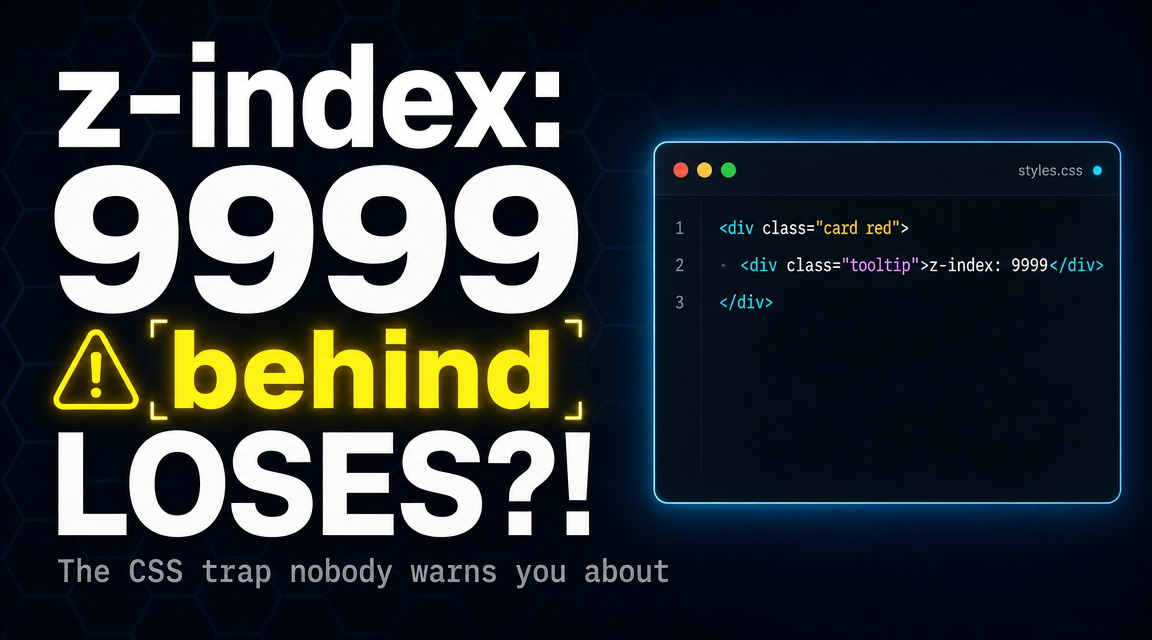
Table of Contents
You set z-index: 9999 on a tooltip. It still hides behind the modal next to it. You bump it to z-index: 99999. Same result. You try 2147483647, the maximum 32-bit signed integer, and the tooltip still loses. This is the most exhausting failure mode in CSS, and it has nothing to do with your number being too small.
CSS z-index does not order elements globally. It orders elements within a single layer called a stacking context, and the moment one of your ancestors creates a new stacking context, every descendant z-index value gets quietly trapped inside that layer. This post walks through the five hidden reasons CSS z-index keeps breaking on real pages, the rendering rule the spec actually enforces, and three practical fixes that always work.
What CSS z-index Actually Compares
The mental model most developers learn first is that z-index assigns a number to an element, and higher numbers paint on top. That model is wrong in exactly the way that produces every confusing layering bug on the web.
The correct model is this: z-index only compares elements that share the same stacking context. A stacking context is a self-contained layer of the page. Once an ancestor opens its own stacking context, every descendant becomes a citizen of that ancestor’s layer. Their z-index values still order them relative to their siblings inside that layer, but they cannot cross the layer boundary.
This is why z-index: 9999 can lose to a sibling whose value is just 2. The two elements are not in the same layer. The browser never directly compares them.
Reason 1: A Parent Quietly Caps Every Descendant’s CSS z-index
Imagine this DOM. A header sits at the top of the page with z-index: 10. Inside the header, a tiny notification badge has z-index: 99999. Elsewhere on the page, a modal has z-index: 20.
<header style="position: relative; z-index: 10">
  <span class="badge" style="position: absolute; z-index: 99999">
    99+
  </span>
</header>

<div class="modal" style="position: fixed; z-index: 20">
  ...
</div>
The badge will sit underneath the modal. Always. Because the header opened a stacking context with z-index: 10, the badge’s 99999 only competes with other elements inside the header. The header itself, as a whole, sits at level 10 in the page-level stacking context. The modal sits at level 20. The header loses, and everything inside it loses with it.
The badge’s number is not too small. Its layer is.
Reason 2: The Hidden Properties That Silently Create Stacking Contexts
If creating a stacking context required explicit opt-in, this whole problem would barely exist. The bug bites because dozens of common CSS properties create stacking contexts as a side effect. The full list, simplified:
/* All of these silently open a new stacking context */
.a { position: relative; z-index: 0; }   /* z-index on positioned element */
.b { opacity: 0.99; }                    /* opacity less than 1 */
.c { transform: translateZ(0); }         /* any transform */
.d { filter: blur(0); }                  /* any filter */
.e { mix-blend-mode: multiply; }         /* any blend mode */
.f { isolation: isolate; }               /* explicit context */
.g { will-change: transform; }           /* will-change on certain props */
.h { contain: layout; }                  /* containment */
This is the source of the most baffling CSS z-index failures. A design system applies opacity: 0.95 to a card for a hover effect. A tooltip inside the card now cannot escape the card’s layer, no matter what z-index you set. A parallax effect adds transform: translateZ(0) for GPU acceleration, and suddenly every dropdown nested inside renders behind unrelated page sections.
Each of these properties has a legitimate purpose. None of them announce that they will trap your descendant z-index values. The full normative list lives in MDN’s stacking context reference, and it is worth bookmarking.
Reason 3: CSS z-index Compares Within, Not Across, Layers
The comparison rule is the most important rule in stacking, and it almost never gets taught:
Two elements only have their z-index values directly compared if they are in the same stacking context.
If they are in different contexts, the browser does not look at their z-index values at all. It compares their ancestor stacking contexts instead, walking up the tree until it finds a shared ancestor.
The classic failure case is two cousins. Cousin A lives inside parent P1 with z-index: 1. Cousin B lives inside parent P2 with z-index: 2. Cousin A has z-index: 99999. Cousin B has z-index: 1. Which one paints on top?
Cousin B. Because the browser never directly compares the cousins. It compares P1 and P2 (P2 wins, because 2 beats 1) and then paints P2’s entire subtree, including Cousin B, above P1’s entire subtree. The 99999 on Cousin A is irrelevant. It only orders Cousin A against its own siblings.
Reason 4: The Browser Paint Order Nobody Teaches
Inside a single stacking context, the painting order is also fixed, and CSS z-index is only one of seven layers. Appendix E of the CSS 2.1 specification defines the exact order the browser paints elements. The simplified version is:
// Painting order inside one stacking context
// (bottom to top)
//
// 1. The stacking context's root element background and borders
// 2. Descendant non-positioned blocks (in DOM order)
// 3. Descendant non-positioned floats
// 4. Descendant non-positioned inline content
// 5. Descendant positioned elements with negative z-index
// 6. Descendant positioned elements with z-index: auto or 0
// 7. Descendant positioned elements with positive z-index
The takeaway is that a positioned element without z-index is not at the bottom. It is at level 6, above all non-positioned content. Adding position: absolute alone reorders your element. Adding z-index: -1 sends it below non-positioned siblings, which is a useful trick for background layers but a frequent source of accidental disappearance.
The key insight: z-index only sorts items in layers 5, 6, and 7 of this list, and only inside the current stacking context. Everything else is determined by the painting algorithm and the DOM order.
Reason 5: The 3 Practical CSS z-index Fixes That Actually Work
Once you know the rule, the fixes are straightforward. Pick the one that fits your situation.
Fix 1: Move the element out of its trapped ancestor. If a tooltip needs to escape its card, render the tooltip at the top of the DOM tree and position it with position: fixed. This is the portal pattern used by every popular UI library, including React Portals, Vue’s <Teleport>, and Solid’s <Portal>. The element renders inside an ancestor with no surprising stacking context.
// React portal — renders tooltip at the document body level
import { createPortal } from "react-dom";

function Tooltip({ children }) {
  return createPortal(
    <div className="tooltip">{children}</div>,
    document.body
  );
}
Fix 2: Use the native <dialog> element with showModal(). Browsers render dialogs in the top layer, a special rendering layer that sits above the entire page regardless of any stacking context. No z-index gymnastics required. This is the cleanest fix for modals in 2026.
<dialog id="confirm-delete">
  <p>Delete this file?</p>
  <button onclick="this.closest('dialog').close()">Cancel</button>
  <button>Delete</button>
</dialog>

<script>
  document.getElementById("confirm-delete").showModal();
</script>
Fix 3: Promote the parent stacking context with isolation: isolate. This is the inverse fix. If you have a component you want to keep self-contained — and ensure none of its internal z-index values ever leak out — wrap it in a container with isolation: isolate. This makes the component a stacking context root, which means its internal z-index numbers stay internal and predictable.
.card {
  isolation: isolate;
}

/* Now any z-index inside .card is sandboxed.
   It will not interfere with z-index values
   elsewhere on the page. */
The CSS z-index bug stops mattering in practice once you treat stacking contexts as a first-class concern in your component design. The numbers are not the problem. The layers are.
Watch the Full Breakdown
The full walkthrough with paint-order diagrams, the cousin problem visualised, and the isolation: isolate fix demonstrated live runs about four minutes in the companion video below.
For more deep dives into browser internals, layout algorithms, and the engineering choices that shape modern CSS, browse the rest of the Web Development section on this site.