


WordPress 7.0 Navigation Overlay: Mobile Menus, Designable At Last
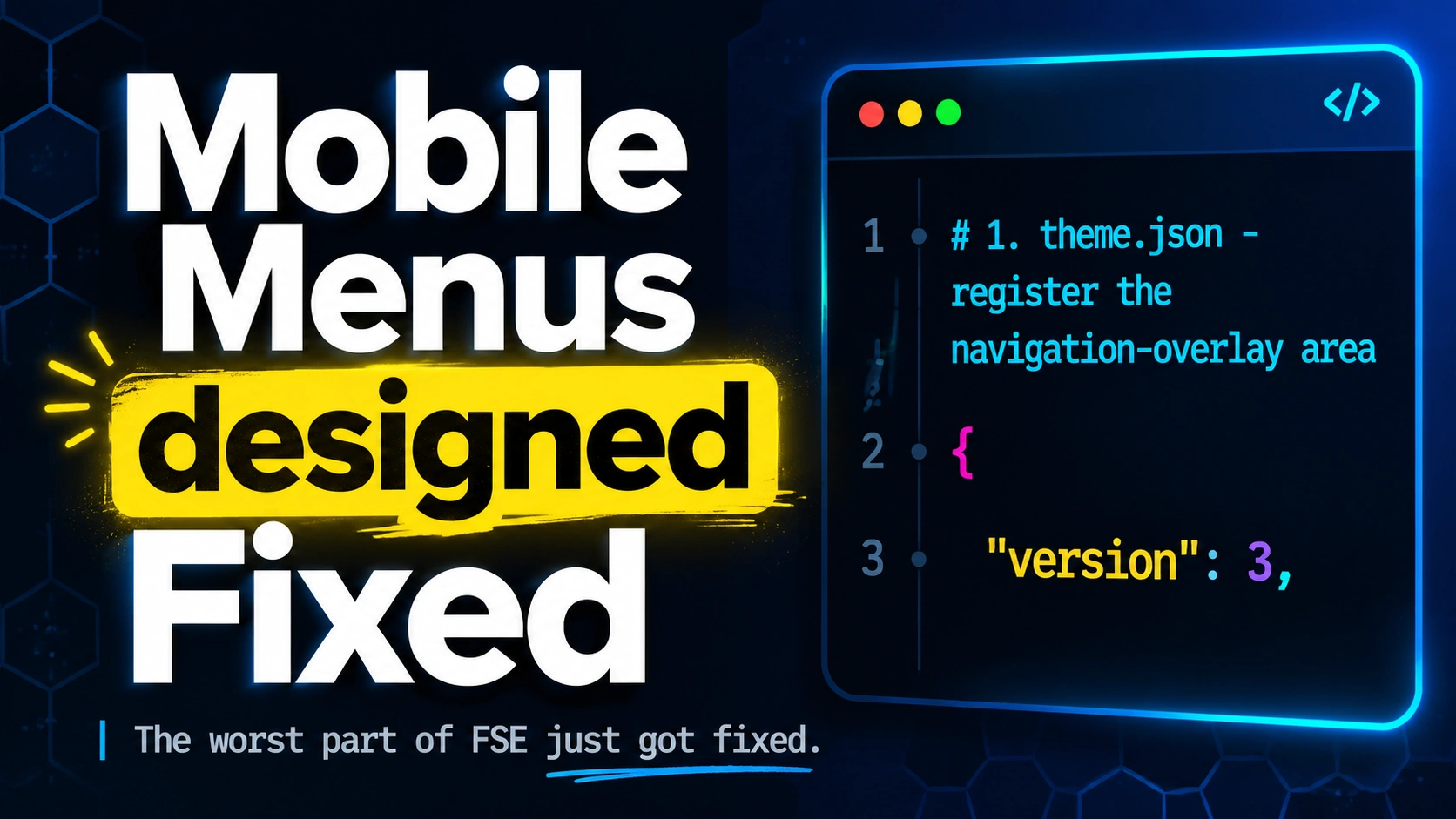
WordPress 7.0 Navigation Overlay finally turns the mobile menu overlay into a regular template part. Anyone running a block theme can redesign their hamburger menu in the Site Editor using the same controls they use for every other template — no custom CSS required, no per-theme hacks.
This is the second single-feature deep dive in the “Inside WordPress 7.0” series, following the Connectors API for plugin devs. Mobile menus have been the worst part of Full Site Editing for years; the WordPress 7.0 Navigation Overlay designer is the fix that arrived in the May 20, 2026 release.
In this post
- What changed: the before and after
- The site owner workflow
- The theme author setup
- The new core navigation overlay close block
- The two honest catches
- What this means going forward
What changed: the before and after
Before WordPress 7.0, the mobile overlay that appears when a visitor taps the hamburger icon was a plain stacked list of links. Theme authors could style the surrounding chrome, but the overlay’s interior was at the mercy of whatever the core Navigation block decided to render. Site owners had nowhere to click. The result, on most block themes, was a Welcome / About / Contact / Blog / Log out list rendered in the theme’s body font on a plain background.
WordPress 7.0 Navigation Overlay turns that surface into a regular template part. The Navigation block has a new overlay attribute that names which template part to use, and template parts can declare area: "navigation-overlay" in theme.json to register themselves as overlay candidates. Inside that template part, every standard block design control applies — spacing, typography, colors, layout. The overlay finally became a first-class surface.
The site owner workflow
For anyone running a block theme on WordPress 7.0, redesigning the mobile menu is now a Site Editor task. The path:
- Dashboard → Appearance → Editor.
- Open Patterns and pick the header template.
- Open List View and select the Navigation block.
- In the block settings sidebar, find the new Overlay section.
- Click Create overlay for a blank canvas, or pick an existing overlay from the dropdown and click Edit.
- The editor opens the overlay as a regular template part. Build it like any other template.
There is no special overlay-only toolbar to learn. Standard block design controls apply — the same way they do for the rest of the Site Editor. The only thing that’s new is the workflow.
The theme author setup
Block-theme authors who want to opt in to the new WordPress 7.0 Navigation Overlay system ship three things:
1. A theme.json entry registering the overlay template-part area:
{
    "version": 3,
    "templateParts": [
        {
            "area": "navigation-overlay",
            "name": "my-overlay",
            "title": "My Overlay"
        }
    ]
}
2. A parts/my-overlay.html file containing the template-part markup. The minimum content is a group block wrapping the new close block and a navigation block:
<!-- wp:group {"layout":{"type":"flex","orientation":"vertical"}} -->
<div class="wp-block-group">
    <!-- wp:navigation-overlay-close /-->
    <!-- wp:navigation /-->
</div>
<!-- /wp:group -->
3. A register_block_pattern() call in functions.php, scoped to the navigation-overlay context via blockTypes:
register_block_pattern( 'my-theme/overlay-default', array(
    'title'      => 'Default Overlay',
    'categories' => array( 'navigation' ),
    'blockTypes' => array( 'core/template-part/navigation-overlay' ),
    'content'    => '<!-- wp:group ... -->',
) );
The blockTypes scope is what makes the pattern show up in the overlay picker instead of cluttering every other inserter. Full documentation is on the Make WordPress dev note.
The new core navigation overlay close block
WordPress 7.0 ships a new core block: core/navigation-overlay-close. It renders the X button that closes the overlay, with three display modes available in the block settings:
- Icon only — the X glyph by itself.
- Text only — the label “Close” (editable).
- Both — the X glyph alongside the label.
The block is placeable anywhere inside the overlay template part. It works like any other block — standard alignment, spacing, and typography controls all apply. No magic wiring required.
The two honest catches
The WordPress 7.0 Navigation Overlay system ships with two known limitations worth understanding before depending on it.
Catch 1 — block themes only. Classic themes cannot use the navigation overlay designer at all. Site owners running a classic theme stay on the default stacked-list overlay with no upgrade path. If the theme is a hybrid that uses block templates for some parts and classic for others, only the block-template parts get the new behavior.
Catch 2 — existing Navigation blocks are not auto-upgraded. Theme authors have to opt in by setting the overlay attribute on each Navigation block in their templates. Sites that simply upgrade to WordPress 7.0 will see no change in behavior until either the theme is updated to opt in, or the site owner edits the Navigation block in the Site Editor and assigns an overlay manually.
Neither limitation is a bug. They’re design choices that preserve backward compatibility — the same WordPress engineering discipline that held the 7.0 release date by cutting unfinished features rather than shipping unstable work.
What this means going forward
WordPress 7.0 Navigation Overlay is the kind of feature that quietly raises the floor for every block theme on the platform. Theme authors get a real surface to design. Site owners get a Site Editor task they can do themselves, instead of filing a feature request to whoever built their theme. Plugin authors who build navigation enhancements have a new, well-scoped extension point.
For the full walkthrough with before/after screenshots and the architecture diagram, watch the companion video above. The three-minute breakdown is on the channel as a Short. Next in the “Inside WordPress 7.0” series: Visual Revisions with a timeline slider for scrubbing post history.