


5 Critical WordPress Bcrypt Password Steps Devs Miss Today
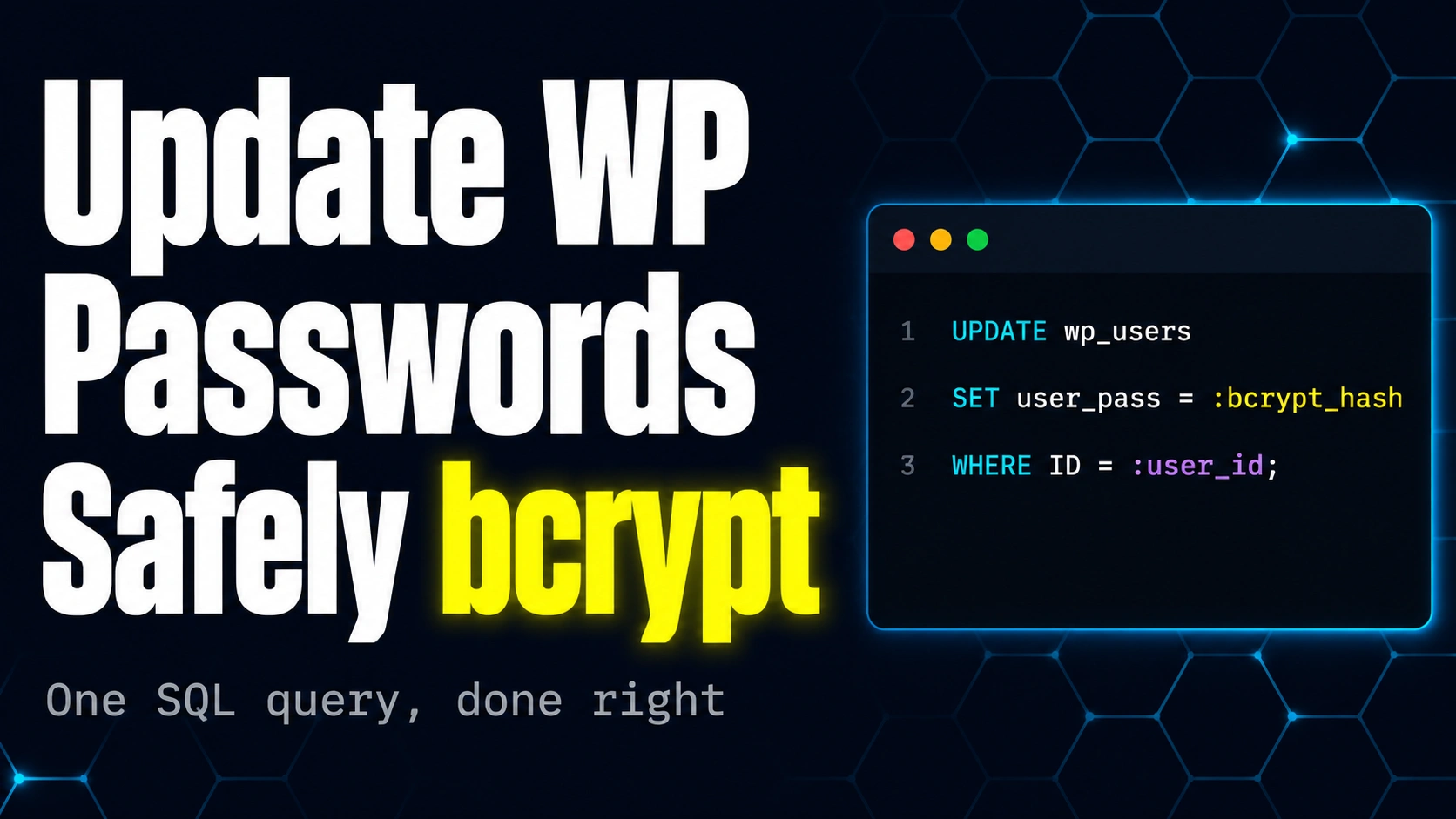
Table of Contents
An admin email account got deactivated. The site’s password reset flow sends to that email, which nobody can read. The only way in is phpMyAdmin. The user_pass column in wp_users sits there waiting. Can you just paste a bcrypt hash into it? The answer is no, not without one extra step that almost everybody skips. This is the WordPress bcrypt password problem: WordPress was never built around bcrypt, and the cleanest fix at the database level depends on knowing exactly what hashing format the core actually uses.
This post walks through five critical WordPress bcrypt password steps for safely updating a user’s stored credential directly in the database, including the foundation step almost every Stack Overflow answer skips. We will cover what WordPress uses by default (it is not bcrypt), how the wp_users table actually stores credentials, how to drop in a phpass-compatible hash for an out-of-the-box install, how to switch the whole site to bcrypt, and the migration path that keeps old logins working while new ones move to the stronger algorithm.
What WordPress Actually Uses for Passwords (It Is Not Bcrypt)
Before any WordPress bcrypt password work, the foundation has to be clear. WordPress does not use bcrypt by default. It uses a library called phpass, the Portable PHP password hashing framework, originally written by Solar Designer for OpenWall in 2004.
Internally phpass uses MD5 as the inner hash function, but stretches it across thousands of iterations to slow down brute force attacks. The resulting hash is stored in the wp_users.user_pass column as a string that always starts with $P$B:
-- A real WordPress user_pass value (phpass)
$P$BvN3xZkOe.6lNZjqz9XKE5y1mWqXcL0
   |  |
   |  └── iteration count (B = 2^13 = 8192 rounds)
   └───── phpass identifier ($P$)
If you paste a raw bcrypt hash (the kind that starts with $2b$12$) directly into user_pass on a vanilla WordPress install, the next login attempt will fail. WordPress’s wp_check_password function inspects the prefix, recognises only the phpass format, and rejects everything else. The WordPress bcrypt password story therefore has two parallel tracks: the phpass path for vanilla installs, and the bcrypt path that requires either WordPress 6.8 or later (which adds native bcrypt support) or a plugin like wp-password-bcrypt that overrides the core hashing functions.
Step 1: Inspect the wp_users.user_pass Column
The first WordPress bcrypt password step is always to look at what is already there. Open phpMyAdmin (or any MySQL client) and inspect the wp_users table schema:
DESCRIBE wp_users;

-- Field           Type            Null    Key     Default
-- ID              bigint(20)      NO      PRI     NULL
-- user_login      varchar(60)     NO      MUL
-- user_pass       varchar(255)    NO              ''
-- user_email      varchar(100)    NO      MUL
-- user_registered datetime        NO              '0000-00-00 00:00:00'
-- ...
Notice that user_pass is varchar(255). That length is intentional: it has to hold phpass hashes (about 34 characters), bcrypt hashes (60 characters), and Argon2 hashes (around 96 characters) so plugins like wp-password-bcrypt do not need a schema migration. Look at one row:
SELECT ID, user_login, user_pass
FROM wp_users
WHERE user_login = 'admin';

-- Vanilla WordPress will show something like:
-- 1 | admin | $P$BvN3xZkOe.6lNZjqz9XKE5y1mWqXcL0

-- A site running wp-password-bcrypt will show:
-- 1 | admin | $2b$12$N9qo8uLOickgx2ZMRZoMyeIjZAgcfl7p92ldGxad68LJZdL17lhWy
The prefix tells you which path you need. Anything starting with $P$ means phpass. Anything starting with $2b$, $2y$, or $2a$ means bcrypt. The WordPress bcrypt password rewrite has to match whatever the site already expects.
Step 2: Generate the Right Hash (Phpass or Bcrypt)
For a vanilla WordPress install, you generate a phpass hash using WordPress’s own PasswordHash class. The simplest script you can run from any directory that has WordPress loaded:
<?php
// generate-phpass.php
require_once 'wp-load.php';

$plain = 'YourNewSecurePassword123!';
$hasher = new PasswordHash(8, true);
$hash = $hasher->HashPassword($plain);

echo $hash . PHP_EOL;
// Output: $P$BvN3xZkOe.6lNZjqz9XKE5y1mWqXcL0
For a site with wp-password-bcrypt installed or WordPress 6.8+, you use PHP’s native password_hash function with the bcrypt algorithm and a cost factor of 12 or higher:
<?php
// generate-bcrypt.php
$plain = 'YourNewSecurePassword123!';
$hash = password_hash($plain, PASSWORD_BCRYPT, ['cost' => 12]);

echo $hash . PHP_EOL;
// Output: $2b$12$N9qo8uLOickgx2ZMRZoMyeIjZAgcfl7p92ldGxad68LJZdL17lhWy
The cost factor of 12 is the modern minimum. It means each hash takes 2^12 (4,096) iterations of the internal blowfish loop, which costs roughly 250 milliseconds on a 2026-era server CPU. A WordPress bcrypt password using cost 12 takes an attacker roughly three hundred years to brute force on consumer hardware, versus the few seconds it would take to break a vanilla phpass hash on the same machine.
Step 3: Run the UPDATE Query Safely
Once you have the right hash for your installation’s hashing system, the SQL is identical for both paths. The trick is to scope the UPDATE precisely so you cannot accidentally rewrite every password in the table:
-- ALWAYS scope the UPDATE to a single user.
-- WHERE user_login = 'admin' is safer than WHERE ID = 1
-- because the admin row is not always ID 1.

UPDATE wp_users
SET user_pass = '$2b$12$N9qo8uLOickgx2ZMRZoMyeIjZAgcfl7p92ldGxad68LJZdL17lhWy'
WHERE user_login = 'admin'
LIMIT 1;

-- Verify before logging out of phpMyAdmin
SELECT ID, user_login, user_pass
FROM wp_users
WHERE user_login = 'admin';
Notice the LIMIT 1. It is defensive: if user_login is somehow not unique (it should be, but explicit constraints have been known to drift), the LIMIT prevents a bulk overwrite. Always run a SELECT first to confirm the row count is one, and always wrap destructive WordPress bcrypt password operations in a transaction if the engine supports it:
START TRANSACTION;

UPDATE wp_users
SET user_pass = '$2b$12$N9qo8uLOickgx2ZMRZoMyeIjZAgcfl7p92ldGxad68LJZdL17lhWy'
WHERE user_login = 'admin'
LIMIT 1;

-- Test the login in another browser window before committing
-- If it works:
COMMIT;
-- If anything looks wrong:
ROLLBACK;
Also clear the user_activation_key column on the same row if you want to invalidate any pending password-reset emails:
UPDATE wp_users
SET user_pass = '$2b$12$N9qo8uLOickgx2ZMRZoMyeIjZAgcfl7p92ldGxad68LJZdL17lhWy',
    user_activation_key = ''
WHERE user_login = 'admin'
LIMIT 1;
Step 4: Migrate the Whole Site to Bcrypt (Without Breaking Logins)
If you actually want the WordPress bcrypt password format to be the default for every new login and password change, you need to install wp-password-bcrypt (a single-file plugin from Roots) or upgrade to WordPress 6.8 or later, which adds native bcrypt support to core.
The wp-password-bcrypt plugin works by overriding two pluggable functions: wp_hash_password and wp_check_password. After it is active, every new password gets hashed with bcrypt, and every login check inspects the stored prefix to decide which algorithm to verify against. Old phpass hashes still validate, and they automatically get re-hashed to bcrypt on the next successful login:
// Pseudocode of what happens inside wp_check_password
function wp_check_password($password, $stored_hash, $user_id) {
    if (str_starts_with($stored_hash, '$2')) {
        // Bcrypt path
        return password_verify($password, $stored_hash);
    }
    if (str_starts_with($stored_hash, '$P$')) {
        // Legacy phpass path: validate, then re-hash to bcrypt
        $valid = phpass_check($password, $stored_hash);
        if ($valid && $user_id) {
            $new_hash = password_hash($password, PASSWORD_BCRYPT, ['cost' => 12]);
            wp_set_password_to($user_id, $new_hash);
        }
        return $valid;
    }
    return false;
}
This is the elegant part of the migration: you do not have to force a site-wide password reset. Old WordPress bcrypt password rollout happens silently, one user at a time, as each person logs in. After everyone has come back at least once, the user_pass column is all bcrypt.
Step 5: Prefer WP-CLI Over Raw SQL Whenever Possible
Direct database updates are appropriate only when you genuinely cannot reach WordPress through the normal admin UI or the wp user reset-password command. Anywhere you do have WP-CLI, prefer it: it goes through the proper wp_hash_password pipeline and respects whichever algorithm the site is configured for.
# Prefer WP-CLI when you can reach the server shell:
wp user update admin --user_pass='YourNewSecurePassword123!'

# Or reset and email the user:
wp user reset-password admin

# With wp-password-bcrypt installed, the same command will
# generate a bcrypt-formatted hash automatically.
Raw SQL UPDATEs into wp_users have three legitimate scenarios: admin recovery when both the password and the email account are unreachable, large-scale migrations between staging and production where you need to set known credentials in bulk, and dev or local environments where seeding test users is faster than going through the UI. Outside of those, the cost factor of a WordPress bcrypt password is irrelevant if you compromise the entire process with sloppy SQL. For the deeper rules about cost-factor selection and the broader hashing landscape, the OWASP Password Storage Cheat Sheet is the authoritative reference.
Watch the Full Breakdown
The complete walk-through, the wp_users schema deep-dive, the phpass-versus-bcrypt structural comparison, the actual SQL commands in context, and the silent migration mechanism inside wp_check_password are all walked through in the companion video below.
For more deep dives into WordPress internals, security engineering, and the operational details that keep production sites safe, browse the rest of the Web Development section on this site.